Add and price your services
List what customers can book, how long each job takes and what it costs.
4 steps · about 2 minutes
-
1
Open Services and Pricing
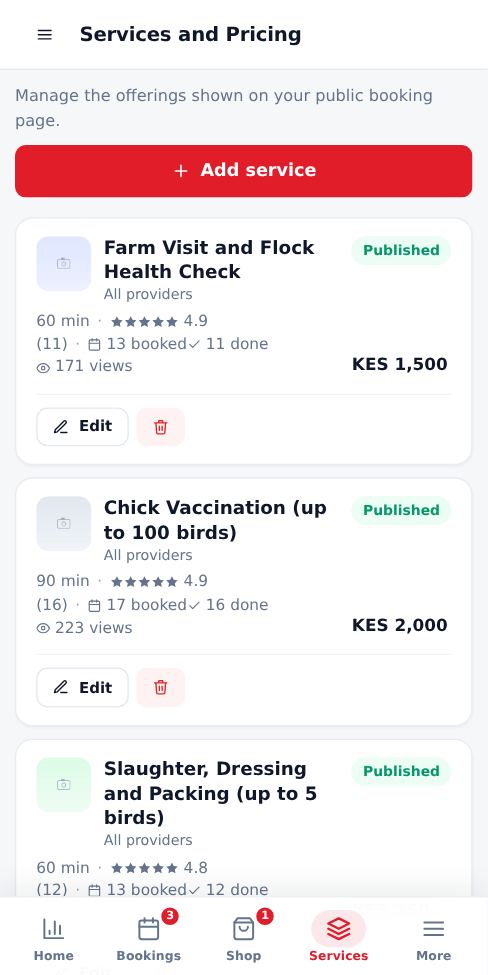
Tap Services in the bottom menu. You see every service with its rating and activity: how many times it was booked, completed and viewed.
-
2
Add a service
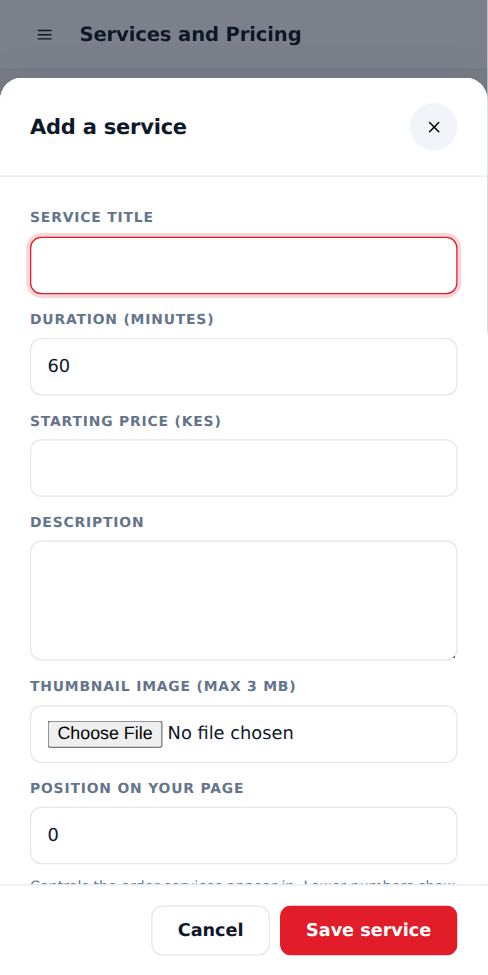
Tap Add service. Enter the name, description, price and how long it takes. The duration decides how long the time slot stays busy.
-
3
Position on your page
Position controls the order services appear on your page. Lower numbers show first, so put 1 on your most popular service. Services with the same number show in the order you added them.
-
4
Assign providers (optional)
Choose which staff can do the service. If you leave it empty, all providers can take it. Each free provider lets one more customer book the same time.
Good to know
- Add a photo for every service. Listings with photos get more bookings.
- Some changes may be reviewed by the platform before they go live. You will see Awaiting approval until then.
More guides for business owners
Register your business and go live
Create your booking page in three steps and pay for as many months as you want by M-Pesa.
Signing in, security codes and one account per browser
How sign-in works, what the security code is, and how to switch accounts safely.
Run several businesses from one account
Add another business, for example electrical and hardware, and switch between them with one sign-in.
Set up your public page, hours and social links
Add your logo, description, working hours, booking rules and social media so customers trust you.
Accept, complete and manage bookings
Respond to new requests, assign staff and mark jobs complete so your calendar stays accurate.
Sell products in your Shop
List products with photos and prices. Buyers order on WhatsApp, by phone or with a call-back request.
Did this answer your question?
If not, contact our support team. WhatsApp is the fastest.