Signing in, security codes and one account per browser
How sign-in works, what the security code is, and how to switch accounts safely.
-
1
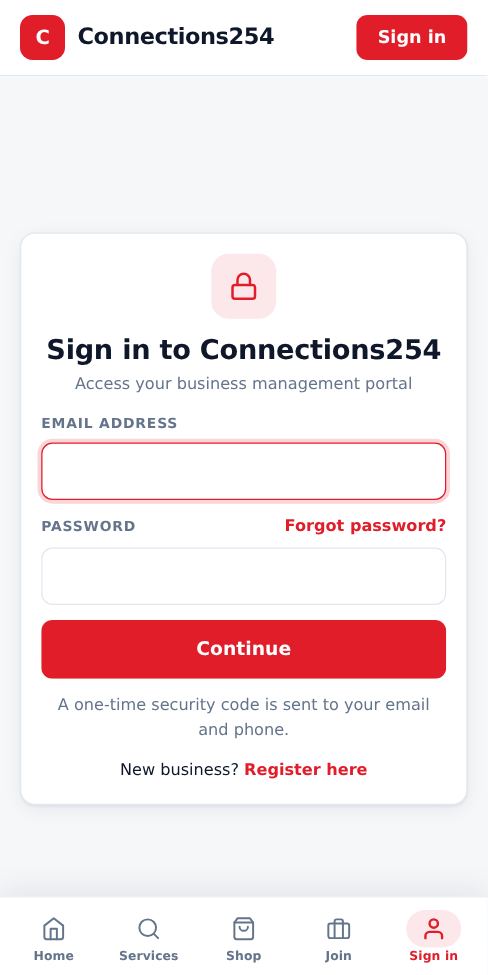
Sign in
Tap Sign in and enter your email and password.
-
2
Enter the security code
For your protection we send a 6-digit code to your email and phone. Enter it to finish signing in. The code expires in 10 minutes.
-
3
One account per browser
A browser holds one signed-in account at a time. If you sign in to another account in a new tab, older tabs show an Account changed notice and ask you to reload. To use two accounts at once, use a different browser or a private window. If you own several businesses, you do not need separate accounts: switch between them from the business menu.
-
4
Forgot your password?
Tap Forgot password on the sign-in page. We send a reset link to your email and phone. It works for 1 hour.
- Never share your security code. Connections254 staff will never ask for it.
More guides for business owners
Did this answer your question?
If not, contact our support team. WhatsApp is the fastest.