Accept, complete and manage bookings
Respond to new requests, assign staff and mark jobs complete so your calendar stays accurate.
-
1
New booking alerts
You get an SMS, WhatsApp or email for each new booking (depending on your alert settings). The message has a link to accept or reject in one tap, even without signing in.
-
2
Open Bookings
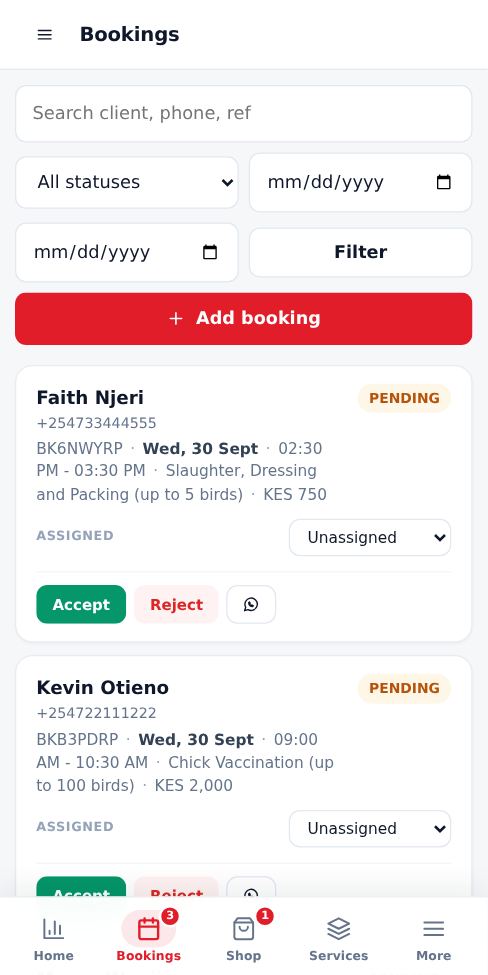
Tap Bookings in the bottom menu. Each card shows the customer, service, date, time and status. Use the dropdown to assign a staff member, and the buttons to call or WhatsApp the customer.
-
3
Accept or reject
Accepting sends the customer a confirmation. Rejecting frees the time slot and tells the customer.
-
4
Mark complete
When the job is done, mark it complete. Finishing early frees the rest of the slot for new bookings. If a job runs past its end time without being completed, you get an alert and the slot opens for new bookings 5 minutes after the end time.
- Completed bookings count towards your jobs completed number on your public page.
- Customers can only leave a Verified booking review after you accept or complete their booking.
More guides for business owners
Did this answer your question?
If not, contact our support team. WhatsApp is the fastest.