Sell products in your Shop
List products with photos and prices. Buyers order on WhatsApp, by phone or with a call-back request.
-
1
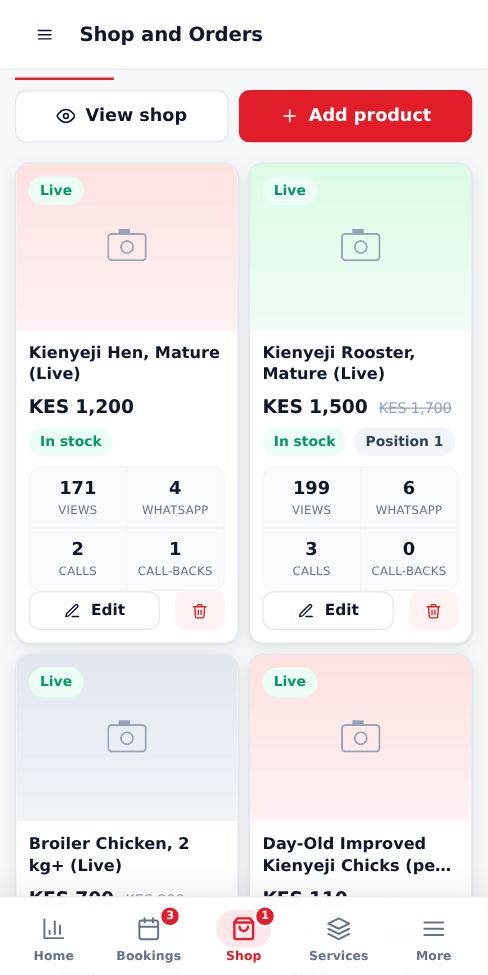
Open Shop and Orders
Tap Shop in the bottom menu. Each product card shows its views, WhatsApp orders, calls and call-back requests.
-
2
Add a product
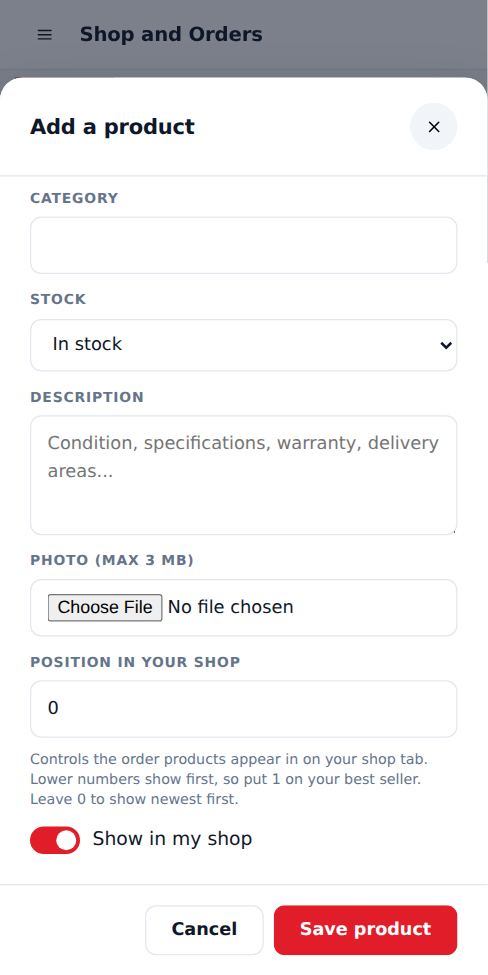
Tap Add product. Enter the name, price and category. Add a "was" price to show a discount. Choose the stock status and add a clear photo (up to 3 MB).
-
3
Position in your shop
Position controls the order of products on your shop tab. Lower numbers show first, so put 1 on your best seller. Leave it at 0 to show your newest products first.
-
4
Handle orders
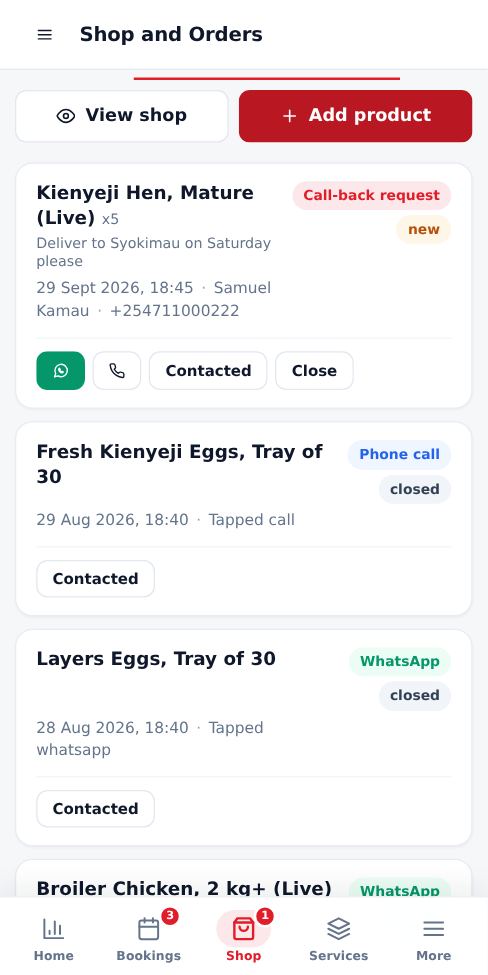
Open the Orders and enquiries tab. WhatsApp and call taps are listed so you can see interest. Call-back requests include the buyer name and phone, and you also get an alert. Mark each one Contacted or Close it.
- Your Shop tab can be switched on or off in Public Online Data.
- Keep stock status up to date so buyers do not order items you do not have.
More guides for business owners
Did this answer your question?
If not, contact our support team. WhatsApp is the fastest.