Run several businesses from one account
Add another business, for example electrical and hardware, and switch between them with one sign-in.
-
1
Add another business
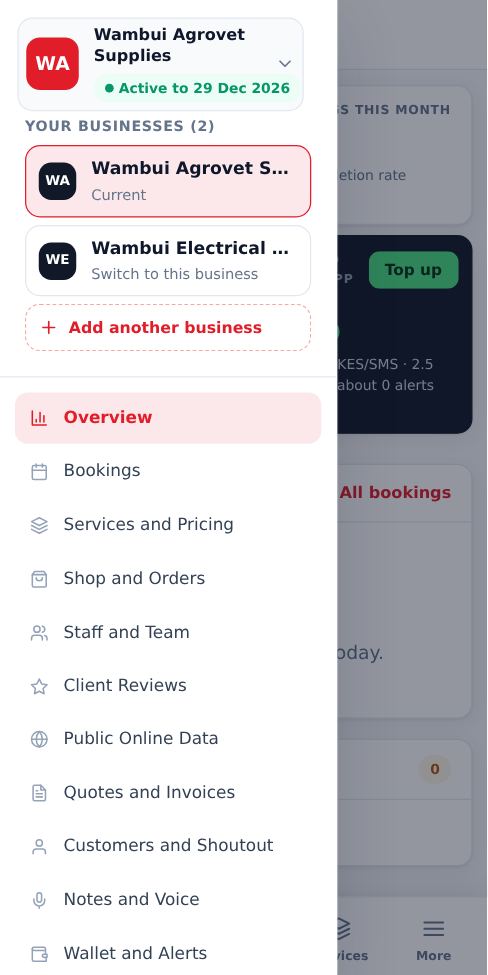
Open the business menu at the top of your side menu (tap your business name) and tap Add another business. You can also open the Register page while signed in and choose Add another business to my account.
-
2
Fill in the new business
Enter the business name, category, town and page link. Your name and email are filled in from your account, so there is no new password. Enter the M-Pesa number for this payment.
-
3
Choose months and pay
Each business has its own subscription at KES 999 per month. Choose 1, 3, 6, 12 or 24 months and pay by M-Pesa. The new business is added to your account as soon as payment goes through.
-
4
Switch between businesses
Tap your business name at the top of the side menu and pick the business to manage. Bookings, services, shop, staff, wallet and reviews are kept separate for each business. The next time you sign in, you land in the business you used last.
-
5
Build a team for each business
Staff are added per business under Staff and Team. A staff email can only belong to one business, so if an email is already registered on the platform, use a different email for that person.
- Your name, phone and password are shared by all your businesses. Change them once under My account.
- Each business keeps its own page link, referral code and payout number.
More guides for business owners
Did this answer your question?
If not, contact our support team. WhatsApp is the fastest.