Download receipts for your payments
Every subscription, renewal and wallet top-up gets a detailed receipt you can view, print or download as PDF.
3 steps · about 1 minute
-
1
Open Billing and Receipts
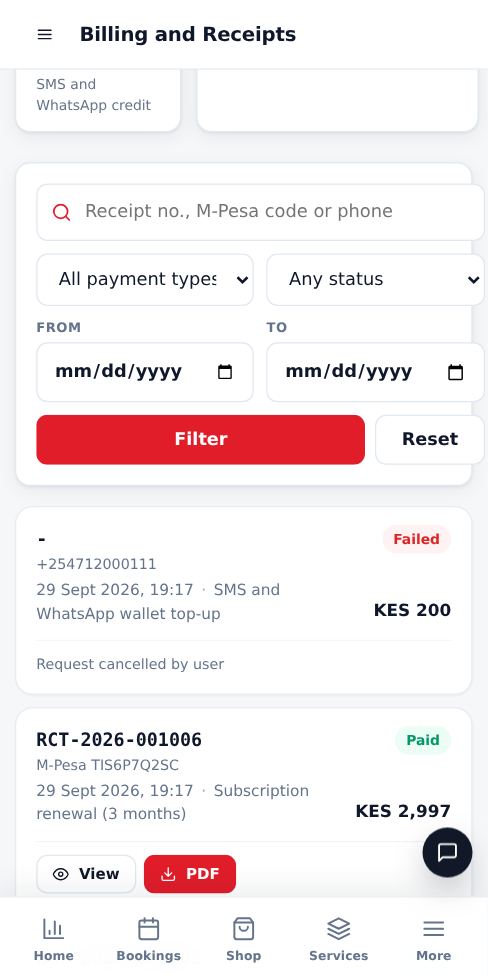
In the side menu, tap Billing and Receipts. You see totals for all payments, subscriptions and wallet top-ups.
-
2
Search and filter
Search by receipt number, M-Pesa code or phone number. Filter by payment type, status and date range. If you own several businesses, choose All my businesses to see every receipt in one list.
-
3
View or download
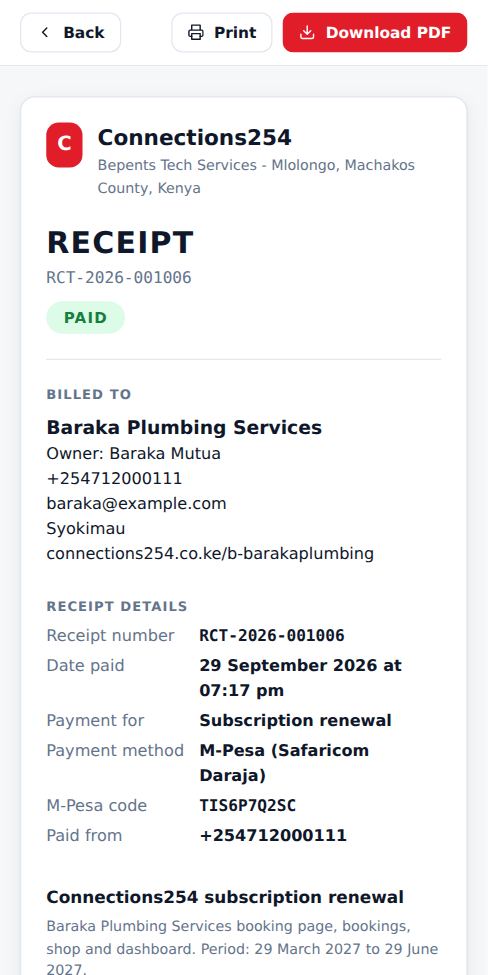
Tap View to open the receipt, or PDF to download it. Each receipt shows the receipt number, date paid, what you paid for, the subscription period, M-Pesa code, paying number, and the totals.
Good to know
- Receipts are also linked from Subscription and from Wallet and Alerts.
- Need a receipt with different details? Send a request under Billing and payments.
More guides for business owners
Register your business and go live
Create your booking page in three steps and pay for as many months as you want by M-Pesa.
Signing in, security codes and one account per browser
How sign-in works, what the security code is, and how to switch accounts safely.
Run several businesses from one account
Add another business, for example electrical and hardware, and switch between them with one sign-in.
Set up your public page, hours and social links
Add your logo, description, working hours, booking rules and social media so customers trust you.
Add and price your services
List what customers can book, how long each job takes and what it costs.
Accept, complete and manage bookings
Respond to new requests, assign staff and mark jobs complete so your calendar stays accurate.
Did this answer your question?
If not, contact our support team. WhatsApp is the fastest.